How a Search Engine Works
Search engine is the popular term for an information retrieval (IR) system. While researchers and developers take a broader view of IR systems, consumers think of them more in terms of what they want the systems to do — namely search the Web, or an intranet, or a database. Actually consumers would really prefer a finding engine, rather than a search engine.
Search engines match queries against an index that they create. The index consists of the words in each document, plus pointers to their locations within the documents. This is called an inverted file. A search engine or IR system comprises four essential modules:
- A document processor
- A query processor
- A search and matching function
- A ranking capability
Document Processor
The document processor prepares, processes, and inputs the documents, pages, or sites that users search against. The document processor performs some or all of the following steps:
- Normalizes the document stream to a predefined format.
- Breaks the document stream into desired retrievable units.
- Isolates and metatags subdocument pieces.
- Identifies potential indexable elements in documents.
- Deletes stop words.
- Stems terms.
- Extracts index entries.
- Computes weights.
- Creates and updates the main inverted file against which the search engine searches in order to match queries to documents.
Steps 1-3: Preprocessing. While essential and potentially important in affecting the outcome of a search, these first three steps simply standardize the multiple formats encountered when deriving documents from various providers or handling various Web sites. The steps serve to merge all the data into a single consistent data structure that all the downstream processes can handle. The need for a well-formed, consistent format is of relative importance in direct proportion to the sophistication of later steps of document processing. Step two is important because the pointers stored in the inverted file will enable a system to retrieve various sized units — either site, page, document, section, paragraph, or sentence.
Step 4: Identify elements to index. Identifying potential indexable elements in documents dramatically affects the nature and quality of the document representation that the engine will search against. In designing the system, we must define the word "term." Is it the alpha-numeric characters between blank spaces or punctuation? If so, what about non-compositional phrases (phrases in which the separate words do not convey the meaning of the phrase, like "skunk works" or "hot dog"), multi-word proper names, or inter-word symbols such as hyphens or apostrophes that can denote the difference between "small business men" versus small-business men." Each search engine depends on a set of rules that its document processor must execute to determine what action is to be taken by the "tokenizer," i.e. the software used to define a term suitable for indexing.
Step 5: Deleting stop words. This step helps save system resources by eliminating from further processing, as well as potential matching, those terms that have little value in finding useful documents in response to a customer's query. This step used to matter much more than it does now when memory has become so much cheaper and systems so much faster, but since stop words may comprise up to 40 percent of text words in a document, it still has some significance. A stop word list typically consists of those word classes known to convey little substantive meaning, such as articles (a, the), conjunctions (and, but), interjections (oh, but), prepositions (in, over), pronouns (he, it), and forms of the "to be" verb (is, are). To delete stop words, an algorithm compares index term candidates in the documents against a stop word list and eliminates certain terms from inclusion in the index for searching.
Step 6: Term Stemming. Stemming removes word suffixes, perhaps recursively in layer after layer of processing. The process has two goals. In terms of efficiency, stemming reduces the number of unique words in the index, which in turn reduces the storage space required for the index and speeds up the search process. In terms of effectiveness, stemming improves recall by reducing all forms of the word to a base or stemmed form. For example, if a user asks for analyze, they may also want documents which contain analysis, analyzing, analyzer, analyzes, and analyzed. Therefore, the document processor stems document terms to analy- so that documents which include various forms of analy- will have equal likelihood of being retrieved; this would not occur if the engine only indexed variant forms separately and required the user to enter all. Of course, stemming does have a downside. It may negatively affect precision in that all forms of a stem will match, when, in fact, a successful query for the user would have come from matching only the word form actually used in the query.
Systems may implement either a strong stemming algorithm or a weak stemming algorithm. A strong stemming algorithm will strip off both inflectional suffixes (-s, -es, -ed) and derivational suffixes (-able, -aciousness, -ability), while a weak stemming algorithm will strip off only the inflectional suffixes (-s, -es, -ed).
Step 7: Extract index entries. Having completed steps 1 through 6, the document processor extracts the remaining entries from the original document. For example, the following paragraph shows the full text sent to a search engine for processing:
Milosevic's comments, carried by the official news agency Tanjug, cast doubt over the governments at the talks, which the international community has called to try to prevent an all-out war in the Serbian province. "President Milosevic said it was well known that Serbia and Yugoslavia were firmly committed to resolving problems in Kosovo, which is an integral part of Serbia, peacefully in Serbia with the participation of the representatives of all ethnic communities," Tanjug said. Milosevic was speaking during a meeting with British Foreign Secretary Robin Cook, who delivered an ultimatum to attend negotiations in a week's time on an autonomy proposal for Kosovo with ethnic Albanian leaders from the province. Cook earlier told a conference that Milosevic had agreed to study the proposal.Steps 1 to 6 reduce this text for searching to the following:
Milosevic comm carri offic new agen Tanjug cast doubt govern talk interna commun call try prevent all-out war Serb province President Milosevic said well known Serbia Yugoslavia firm commit resolv problem Kosovo integr part Serbia peace Serbia particip representa ethnic commun Tanjug said Milosevic speak meeti British Foreign Secretary Robin Cook deliver ultimat attend negoti week time autonomy propos Kosovo ethnic Alban lead province Cook earl told conference Milosevic agree study propos.The output of step 7 is then inserted and stored in an inverted file that lists the index entries and an indication of their position and frequency of occurrence. The specific nature of the index entries, however, will vary based on the decision in Step 4 concerning what constitutes an "indexable term." More sophisticated document processors will have phrase recognizers, as well as Named Entity recognizers and Categorizers, to insure index entries such as Milosevic are tagged as a Person and entries such as Yugoslavia and Serbia as Countries. Step 8: Term weight assignment. Weights are assigned to terms in the index file. The simplest of search engines just assign a binary weight: 1 for presence and 0 for absence. The more sophisticated the search engine, the more complex the weighting scheme. Measuring the frequency of occurrence of a term in the document creates more sophisticated weighting, with length-normalization of frequencies still more sophisticated. Extensive experience in information retrieval research over many years has clearly demonstrated that the optimal weighting comes from use of "tf/idf." This algorithm measures the frequency of occurrence of each term within a document. Then it compares that frequency against the frequency of occurrence in the entire database.
Not all terms are good "discriminators" — that is, all terms do not single out one document from another very well. A simple example would be the word "the." This word appears in too many documents to help distinguish one from another. A less obvious example would be the word "antibiotic." In a sports database when we compare each document to the database as a whole, the term "antibiotic" would probably be a good discriminator among documents, and therefore would be assigned a high weight. Conversely, in a database devoted to health or medicine, "antibiotic" would probably be a poor discriminator, since it occurs very often. The TF/IDF weighting scheme assigns higher weights to those terms that really distinguish one document from the others.
Step 9: Create index. The index or inverted file is the internal data structure that stores the index information and that will be searched for each query. Inverted files range from a simple listing of every alpha-numeric sequence in a set of documents/pages being indexed along with the overall identifying numbers of the documents in which the sequence occurs, to a more linguistically complex list of entries, the tf/idf weights, and pointers to where inside each document the term occurs. The more complete the information in the index, the better the search results.
Query Processor
Query processing has seven possible steps, though a system can cut these steps short and proceed to match the query to the inverted file at any of a number of places during the processing. Document processing shares many steps with query processing. More steps and more documents make the process more expensive for processing in terms of computational resources and responsiveness. However, the longer the wait for results, the higher the quality of results. Thus, search system designers must choose what is most important to their users — time or quality. Publicly available search engines usually choose time over very high quality, having too many documents to search against.
The steps in query processing are as follows (with the option to stop processing and start matching indicated as "Matcher"):
- Tokenize query terms. Recognize query terms vs. special operators. ————————> Matcher
- Delete stop words.
- Stem words.
- Create query representation. ————————> Matcher
- Expand query terms.
- Compute weights. ————————> Matcher
At this point, a search engine may take the list of query terms and search them against the inverted file. In fact, this is the point at which the majority of publicly available search engines perform the search.
Steps 3 and 4: Stop list and stemming. Some search engines will go further and stop-list and stem the query, similar to the processes described above in the Document Processor section. The stop list might also contain words from commonly occurring querying phrases, such as, "I'd like information about." However, since most publicly available search engines encourage very short queries, as evidenced in the size of query window provided, the engines may drop these two steps.
Step 5: Creating the query. How each particular search engine creates a query representation depends on how the system does its matching. If a statistically based matcher is used, then the query must match the statistical representations of the documents in the system. Good statistical queries should contain many synonyms and other terms in order to create a full representation. If a Boolean matcher is utilized, then the system must create logical sets of the terms connected by AND, OR, or NOT.
An NLP system will recognize single terms, phrases, and Named Entities. If it uses any Boolean logic, it will also recognize the logical operators from Step 2 and create a representation containing logical sets of the terms to be AND'd, OR'd, or NOT'd.
At this point, a search engine may take the query representation and perform the search against the inverted file. More advanced search engines may take two further steps.
Step 6: Query expansion. Since users of search engines usually include only a single statement of their information needs in a query, it becomes highly probable that the information they need may be expressed using synonyms, rather than the exact query terms, in the documents which the search engine searches against. Therefore, more sophisticated systems may expand the query into all possible synonymous terms and perhaps even broader and narrower terms.
This process approaches what search intermediaries did for end users in the earlier days of commercial search systems. Back then, intermediaries might have used the same controlled vocabulary or thesaurus used by the indexers who assigned subject descriptors to documents. Today, resources such as WordNet are generally available, or specialized expansion facilities may take the initial query and enlarge it by adding associated vocabulary.
Step 7: Query term weighting (assuming more than one query term). The final step in query processing involves computing weights for the terms in the query. Sometimes the user controls this step by indicating either how much to weight each term or simply which term or concept in the query matters most and must appear in each retrieved document to ensure relevance.
Leaving the weighting up to the user is not common, because research has shown that users are not particularly good at determining the relative importance of terms in their queries. They can't make this determination for several reasons. First, they don't know what else exists in the database, and document terms are weighted by being compared to the database as a whole. Second, most users seek information about an unfamiliar subject, so they may not know the correct terminology.
Few search engines implement system-based query weighting, but some do an implicit weighting by treating the first term(s) in a query as having higher significance. The engines use this information to provide a list of documents/pages to the user.
After this final step, the expanded, weighted query is searched against the inverted file of documents.
Search and Matching Function
How systems carry out their search and matching functions differs according to which theoretical model of information retrieval underlies the system's design philosophy. Since making the distinctions between these models goes far beyond the goals of this article, we will only make some broad generalizations in the following description of the search and matching function. Those interested in further detail should turn to R. Baeza-Yates and B. Ribeiro-Neto's excellent textbook on IR (Modern Information Retrieval, Addison-Wesley, 1999).
Searching the inverted file for documents meeting the query requirements, referred to simply as "matching," is typically a standard binary search, no matter whether the search ends after the first two, five, or all seven steps of query processing. While the computational processing required for simple, unweighted, non-Boolean query matching is far simpler than when the model is an NLP-based query within a weighted, Boolean model, it also follows that the simpler the document representation, the query representation, and the matching algorithm, the less relevant the results, except for very simple queries, such as one-word, non-ambiguous queries seeking the most generally known information.
Having determined which subset of documents or pages matches the query requirements to some degree, a similarity score is computed between the query and each document/page based on the scoring algorithm used by the system. Scoring algorithms rankings are based on the presence/absence of query term(s), term frequency, tf/idf, Boolean logic fulfillment, or query term weights. Some search engines use scoring algorithms not based on document contents, but rather, on relations among documents or past retrieval history of documents/pages.
After computing the similarity of each document in the subset of documents, the system presents an ordered list to the user. The sophistication of the ordering of the documents again depends on the model the system uses, as well as the richness of the document and query weighting mechanisms. For example, search engines that only require the presence of any alpha-numeric string from the query occurring anywhere, in any order, in a document would produce a very different ranking than one by a search engine that performed linguistically correct phrasing for both document and query representation and that utilized the proven tf/idf weighting scheme.
However the search engine determines rank, the ranked results list goes to the user, who can then simply click and follow the system's internal pointers to the selected document/page.
More sophisticated systems will go even further at this stage and allow the user to provide some relevance feedback or to modify their query based on the results they have seen. If either of these are available, the system will then adjust its query representation to reflect this value-added feedback and re-run the search with the improved query to produce either a new set of documents or a simple re-ranking of documents from the initial search.
What Document Features Make a Good Match to a Query
We have discussed how search engines work, but what features of a query make for good matches? Let's look at the key features and consider some pros and cons of their utility in helping to retrieve a good representation of documents/pages.
• Term frequency: How frequently a query term appears in a document is one of the most obvious ways of determining a document's relevance to a query. While most often true, several situations can undermine this premise. First, many words have multiple meanings — they are polysemous. Think of words like "pool" or "fire." Many of the non-relevant documents presented to users result from matching the right word, but with the wrong meaning.Also, in a collection of documents in a particular domain, such as education, common query terms such as "education" or "teaching" are so common and occur so frequently that an engine's ability to distinguish the relevant from the non-relevant in a collection declines sharply. Search engines that don't use a tf/idf weighting algorithm do not appropriately down-weight the overly frequent terms, nor are higher weights assigned to appropriate distinguishing (and less frequently-occurring) terms, e.g., "early-childhood."
• Location of terms: Many search engines give preference to words found in the title or lead paragraph or in the metadata of a document. Some studies show that the location — in which a term occurs in a document or on a page — indicates its significance to the document. Terms occurring in the title of a document or page that match a query term are therefore frequently weighted more heavily than terms occurring in the body of the document. Similarly, query terms occurring in section headings or the first paragraph of a document may be more likely to be relevant. • Link analysis: Web-based search engines have introduced one dramatically different feature for weighting and ranking pages. Link analysis works somewhat like bibliographic citation practices, such as those used by Science Citation Index. Link analysis is based on how well-connected each page is, as defined by Hubs and Authorities, where Hub documents link to large numbers of other pages (out-links), and Authority documents are those referred to by many other pages, or have a high number of "in-links" (J. Kleinberg, "Authoritative Sources in a Hyperlinked Environment," Proceedings of the 9th ACM-SIAM Symposium on Discrete Algorithms. 1998,pp. 668-77).
• Popularity : Google and several other search engines add popularity to link analysis to help determine the relevance or value of pages. Popularity utilizes data on the frequency with which a page is chosen by all users as a means of predicting relevance. While popularity is a good indicator at times, it assumes that the underlying information need remains the same.
• Date of Publication: Some search engines assume that the more recent the information is, the more likely that it will be useful or relevant to the user. The engines therefore present results beginning with the most recent to the less current.
• Length : While length per se does not necessarily predict relevance, it is a factor when used to compute the relative merit of similar pages. So, in a choice between two documents both containing the same query terms, the document that contains a proportionately higher occurrence of the term relative to the length of the document is assumed more likely to be relevant.
• Proximity of query terms : When the terms in a query occur near to each other within a document, it is more likely that the document is relevant to the query than if the terms occur at greater distance. While some search engines do not recognize phrases per se in queries, some search engines clearly rank documents in results higher if the query terms occur adjacent to one another or in closer proximity, as compared to documents in which the terms occur at a distance.
• Proper nouns sometimes have higher weights, since so many searches are performed on people, places, or things. While this may be useful, if the search engine assumes that you are searching for a name instead of the same word as a normal everyday term, then the search results may be peculiarly skewed. Imagine getting information on "Madonna," the rock star, when you were looking for pictures of madonnas for an art history class.
Summary
The above explanation lays out the range of processing that might occur in a search engine, along with the many options that a search engine provider decides on. The range of options may help clarify users' frequent surprise at the results their queries return. Up till now, search engine providers have mainly opted for less, versus more, complex processing of documents and queries. The typical search results therefore leave a lot of work to be done by the searcher, who must wend their way through the results, clicking on and exploring a number of documents before finding exactly what they seek. The typical evolution of products and services suggests that this status-quo will not continue. Search engines that go further in the complexity and quality of the processing performed will be rewarded with greater allegiance by searchers, as well as financially rewarding opportunities to serve as the search engine on more organizations' intranets.
Searchers should keep watching for the best and pursuing it.
Laptop Buyer's Guide
One cannot make an intelligent buying decision with out first knowing what parts & features together constitute a notebook. Once we know these components, we can expand our knowledge into specifying which parts and features must necessarily be in the notebook and which we can compromise or forego, given the cost and resulting benefits of each decision.
When I said specifying it means both made(or built) to order notebook that is shipped out to the consumer in a week or two or readybuilt notebook that one can buy off the shelf of a retail vendor. Both Lenovo and Dell permit the consumer to build a notebook as per user specifications. In this case it is assumed that the buyer knows what he wants in his(her) notebook. Even if one buys a notebook off the shelf it helps to know what comes with the system in exchange for his(her) hard earned money.
One can not imagine a situation where a blindfolded customer randomly pointing his finger at one notebook (that one!) among so many on display at a retail shop, buys it and goes away. Even if you are in a computer shop with your eyes wide open, it would make no difference if you don’t have some basic understanding of what a notebook is (or does).
Let me give you an example. Suppose you have decided to buy an Lenovo(IBM) Thinkpad notebook because you overheard someone mention in their conversation! (I chose Lenovo(IBM) brand for its many virtues and excellent online documentation is one of them) And you also saw this ad on Lenovo’s home page and are impelled to buy it immediately and decided that it is a no brainer. What can go wrong with this decision? You say to yourself, “Look at the shiny black notebook with a glowing image on its screen! I cannot wait to tap on its beautiful keyboard”.
 |
Congratulations, you made the decision. But which one out of the many Thinkpads is going to give you this much saving. And do you need all that it offers?
If see the image below you can see several different combinations in which just this one model (Thinkpad) of one particular brand Lenovo can come.
 |
But which one? A bewildering array of possibilities, isn’t it? We haven’t even talked about price yet. Some how you arrive at a configuration shown below and it costs you $ 1275/- and goes up from there with every upgrade.

You are ready to click on “Add to cart“button and pay through credit card. But wait. Suddenly you remember some flyers dropped at your home from Futureshop and Staples that give you details about some special offers on notebooks . At this point you make a price comparison. Ofcourse the flyers talk about different models and brand names. As an example see the one below:

While you need only to compare apples to apples, you see for much less money you get your laptop with an extra all-in-one printer thrown in for free in this Futureshop special offer!
You think this is a better deal and you are getting value for money. So you change your mind. But are you sure? Do you see the complexity now?
To conclude, no deal is good or bad by themselves. It has to be seen with in the context and the context is what you intend to do with the laptop and what comes with the laptop and whether it can serve my needs. While you may have a good idea about what you intend to do with it, you should be clear what goes to make a laptop.
|  |
The battery though visible (close the laptop and turn it over to see the bottom) as shown below, it is not something that we interact with while working. Mobility is a prime characteristic of a laptop and battery plays a major part in it. Imagine, looking for a looking for a wall socket to connect to, at the airport lounge because your battery is down and you have important messages to check before your flight. So it pays to look closely at the specifications of the battery that comes with the laptop and to know if it is possible to order higher capacity battery with the laptop instead of the standard that comes with it.

| However it helps to know the communication ports of your notebook as they extend the capabilities of the laptop. The ports/features marked on a laptop on the left are the typical communication ports and features that we would be physically interacting with and in a laptop. |
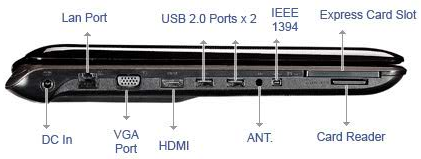
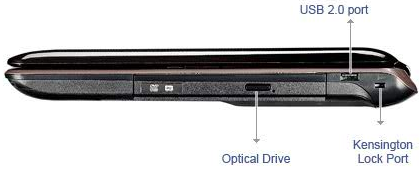
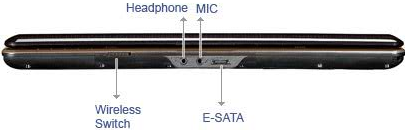
| As for the rest, like processor, system memory, hard drive etc while not visible but work silently behind; to deliver the results desired. Just for completion of this discussion a blown up diagram of a laptop is shown on the left and you could see that the processor, system board, system memory, hard drive etc. are safely encased within the shell and are out of sight. While you may not come into physical contact with these components for everyday use, a careful selection of these in the notebook is a must for the optimum performance. | 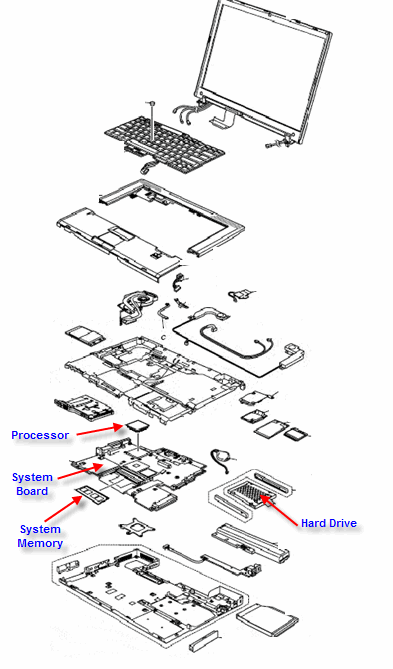 |
It is not my intention to scare you with too many technicalities of laptop parts in your selection. You can skip this section if you want to. But it helps to know more and this additional knowledge puts you in control in the choice of a laptop that is a closer match to your needs.
Hard Disk Drive (HDD)-> RAM Memory -> Memory Controller (MCH) -> cache memory -> CPU
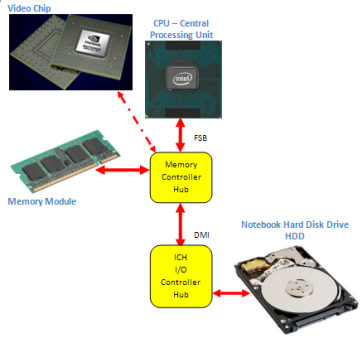 This long path is necessitated by the fact that these components operate at different speeds. In relative terms, CPU is the fastest and the hard disk drive (HDD) being the slowest. The speed of RAM memory and cache memory falling in between the two, with cache memory being much faster than the RAM memory.
 Any parameter of these components that speeds up the data travel in this path improves our experience with the laptop.
In earlier models of Intel processors, the cache memory is part of the CPU itself while the memory controller (MCH) stays outside the cpu in the form an additional chip. But later models of Intel processors like Core i3,i5,i7 have all built-in memory controllers.
In AMD processors, the memory controller (MCH), cache memory and the CPU are all packaged together as a single chip aka CPU.
When the memory controller is embedded in the CPU, the memory is directly connected to the CPU bypassing the motherboard chipset thereby enhancing the performance.
With this framework in the background, let us go over some of the parameters of the following components:
- Processor (CPU):
- Clock Speed: Measured in billions of cycles/sec or GHz. (Please note: 1 cycle/sec = 1 Hz and the term Giga stands for the quantity billion and hence the term GigaHertz or GHz for short) Higher the clock speed, greater is the speed with which the instructions are executed and hence greater is the performance
- FrontSideBus (FSB): Measured in million of cycles/sec or MHz. (Again the term Mega stands for the quantity million and the term MegaHertz or Mhz for short) Greater the FSB, faster will be the data travel to the CPU, and hence greater is the performance
- Number of Cores: A CPU with 4 cores is known as QUAD CPU, while a CPU with 2 cores is known as Duo CPU and a CPU with a single core is known as Solo CPU. Theoretically more the number of cores faster will be the processing of instructions as the processing will be shared between the number of cores available. Imagine 4 waitresses(Quad Core) waiting to take your order at the restaurant table vs. that one waitress(Solo) who has disappeared in the kitchen with your order and you are left wondering what happened.
- Number of bits: It matters whether it is a 64 bit processor or a 32 bit processor. Earlier models of cpu used to be 32 bit processors. Lately 64 bit processors have become the norm.
- Cache Memory: Measured in MegaByte or MB for short. Greater the size of the cache memory, less is the necessity for the CPU to reach the RAM memory for additional data. Hence faster will be the processing.
- RAM Memory:
- Size of memory: Measured in GigaByte or GB for short. Greater the size of the memory, more data, and hence more applications can be stored in the RAM for CPU to access. Hence better will be the performance in a multitasking environment.
- Technology adopted for data transfer from the RAM to the CPU: DDR vs. DDR2 vs. DDR3. DDR2 allows for higher clock speed compared to DDR and hence more gets done in a given time. The newer DDR3 technology offers nearly twice the bandwidth of DDR2 and hence is suited for graphics-rich applications. It allows for lower power consumption too and hence makes possible longer battery life.
- Clock speed: Higher the clock speed better the performance. Given the technology choose the memory module with the greater clock speed.
- Hard disk drive (HDD):
- Interface of hard drive with the motherboard: Whether it is Serial ATA(SATA) or Parallel ATA (PATA) interface that is adopted in the laptop. PATA is slower compared to SATA in terms of data transfer and PATA technology is slowly being phased out. Choose SATA over PATA always.
- The technology behind hard drive itself: Whether it is driven by conventional mechanical means or by the emerging Solid State Drive (SSD) technology. SSD is considerably faster than mechanical drive for data transfer (notably for random access) and less power intensive. By being faster it increase the data transfer rate to the CPU and by being less power intensive makes the laptop battery last longer and you can use the laptop hours on end without having to look for a wall socket. Such advantages come at a price. SSDs are more expensive compared to conventional mechanical hard disk drives.
- Speed of rotation: This is applicable for conventional mechanical hard disk drives only. Higher the speed of rotation, greater is the rate at which the data will be accessed for read or write. Go for a laptop with a hard drive that is running faster if you can afford the price difference.
I would like to tell you more about the Screen and Display adapter which also have a say in the overall experience you get out of your laptop. But let’s keep it for another day.
With the details seen this page and the previous page, you are ready to move on to Laptop key features and some additional parameters in your purchasing decision.
The following table gives in a nutshell the key features, their relative importance and some pertinent remarks about each feature that would help in the buying decision.
| Feature | Importance | Remarks |
|---|---|---|
| Processor | Important | Buyers would do well to do some additional research before committing themselves to a particular processor in a notebook. Because once a processor is selected not much can be done by way of an upgrade and are consigned to live with their selection. However the following set of guidelines would help one to start with the selection:
|
| Feature | Importance | Remarks |
|---|---|---|
| Sytsem Memory | Important | Windows Vista needs lots of memory to run and if more applications are run simultaneously more is the need for memory. Higher the amount of memory in the system, and faster it is, better is the performance. Bare minimum is 512MB, 1GB is adequate and anything higher is better. It will be helpful to have empty memory slots for future expansion. For example, while the amount of memory in 2 sticks of 512MB memory module is equal to a single stick of 1GB memory module, it is preferable to buy a laptop, with the latter configuration as it leaves room for expansion. In terms of speed, if two laptops come with the same amount of memory say 1GB, but one is running at 667Mhz while the other at 1066Mhz, it is preferable to buy the latter. |
| Screen Size | Important | Bigger the screen size, better it is. A bigger screen helps to see more of the details of a document or image on the screen. Higher the resolution, better it is. If a given screen size say 15.4″ is offered in two resolutions 1280 x 800 or 1680 x 1050, it is better to choose the latter. It helps to see the document / image crisply. |
| Communication Ports | Important | By its very nature(mobility) a laptop is expected to connect effortlessly to the available network. At a minimum it should have built-in wireless that supports 802.11 B/G standard. It is even better, if it supports the newer 802.11 N standard, as it makes for faster data transfer and covers a wider range for wireless connection. It is not a big deal if it supports the less popular 802.11 A apart from B/G. Support for 10/100 integrated Ethernet LAN, V.92 56K Data/Fax Modem is a must and comes with all the laptops. Some models come with 10/100/1000 integrated Ethernet LAN support which is better, as it helps to transfer data at gigabit rate. An integrated webcam is very helpful for those business customers interested in teleconferencing, or for those casual customers interested in chatting over the internet with their friends and families. It does away with unnecessary cables which look clumsy if one decides to plug-in external web camera at a later day not to mention carrying additional equipments from place to place. An integrated microphone for Internet chat is a definite convenience for the above needs and reasons. Support for Bluetooth is welcome but not essential. If one decides to have it, it better to go with the latest version (V2.0). |
| Hard Drive Size | Less Important |
|
| Optical Drive | Less Important | Laptop configurations with DVDRW are preferred over DVD Rom/ CDRW combo. Buyers interested in watching high definition video, are advised to check if the notebook supports Blu-Ray format drives. |
| Other ports | Less Important | A minimum of 2 USB2.0 ports are essential in a laptop, anything greater is better. Most of the peripherals (printers, camera, scanners) support USB2.0 standard. PC card slots are helpful in many ways, like inserting a serial port (which is a phased out standard but is finding newer applications like connecting to a satellite receiver) or a IEEE 1394 Firewire port (for firewire devices like a video camera) or an adapter with USB2.0 ports(should you need more) Newer laptops come with an additional express card slot apart from the PC card slots.The major benefit of an express card slot is the increased bandwidth for data transfer that they offer vs. PC card or USB2.0 interface. Express card can transfer data at 2.50Gbits/sec vs. 1.04Gbits/sec for PC Card and 480Mbits/sec for USB2.0. It is absolutely convenient to have slots for memory cards / flash cards that support as many formats as possible. |
| Warranty Support | Less Important | Some models come with 1 year parts & labor, while some come with 2 year parts and labor, while some high end models come with 3 years part and labor warranties. Here there is a tradeoff between cost and peace of mind (to know that the laptop is covered for so many years). In my experience, lately laptops are prone to failure, especially the low end laptops and those that compete on price. So my recommendation is to go for as many years of warranty coverage as one’s budjet can afford. Also it is preferable to go for those notebooks that are covered under international warranties. Should one expects to travel often and is away from the home country from which they are bought, this will come in handy. |
| Bundled Software | Not so important | Barring the Operating System software that comes with the Laptop, other software are not so important. This is because either they are trial versions of popular software which lasts only 2 to 3 months from the date of purchase (after which period one needs to pay for the full version) or they are some utilities that the manufacturer provides anyway. |
| Price | Less Important | By now you are convinced that price is not that important a factor in the buying decision. You will agree with me that what matters most is the specifications of the laptop, its reliability, its ease of use, warranty support etc. In short whether they will meet your needs. However it is wise to shop around and look for the best deal for a notebook that you have selected after careful consideration. Also it is helpful to have a Plan B( an alternate model from the same brand with almost similar specs or alternate brand with the exact specs) if your chosen model is out of stock or phased out. |
In the previous discussion we focussed exclusively on hardware and very little on software. Especially we left out the operating system software which make all the hardware work together. Given its importance it deserves a separate page for discussion.
As of September 2010, as per Market Share data 91.08% of the users prefer some version of Windows Operating System, followed by 5.03% of users who prefer Mac OS and a miniscule 3.89% make the rest of the operating systems which include Linux.
So what this means to you, the potential laptop buyer?
It means, it is safe to choose Windows OS as your preferred operating system for your notebook. If you see the following reasons you will agree with me.
- There is a very vast pool of Windows users all over the world, Microsoft is getting a constant feedback from its users about possible improvements, the inherent problems of the Windows OS and the threats to their system experienced by the users through the Internet. Hence it is constantly bringing upgrades and updates to their products to maintain its market leadership. With constant updateds, you can be reasonably sure that your laptop runs stable over the course of its life.
- Also as the majority of your applications are written for Windows OS, you can be rest assured that all your appllications are well supported.
- In all likelihood all your peripherals have drivers written for Windows, so hassle free you can connect your peripherals to your new laptop and extend its functionality.
- Finally Windows OS is easy to use.
One concern that some users have is whether their existing 32 Bit applications will run well in a 64 Bit environment. The answer is that they should. Only in rare occasions, where you have legacy external hardware devices for which the driver software is 32-Bit compatible, will you have problem connecting them to 64 Bit laptop. In such cases you may have to look for 64-Bit drivers for such devices, download, install and then connect them.
If you are with me so far, the next question is which version of Windows should you choose?
In simple terms this is what I would suggest:
Choose Windows XP Professional OS in the following situations:
- If you are currently running an older application in your other computers that are only compatible with Windows XP
- If any of your existing peripherals that have drivers that are compatible only with Windows XP
- If your laptop is not so richly endowed with hardware like bigger memory, higher screen resolution, a very fast processor
- If you have just bought an older laptop at bargain price with an older battery or a battery with low capacity and still want to make the best use of it
- If you are like me, a little conservative, playing it safe and waiting until others have given their verdict about a better OS from Microsoft than Windows XP
- If all of your existing applications in other computers are compatible with Windows Vista
- If your existing perpherals have latest drivers supported by Vista which you can easily download and install
- If your laptop is rich in specifications that boasts a very fast processor, a screen that can support high resolution, huge memory
- If it comes with the latest battery with an impressive running time
- If you are a bit adventurous and would like to have the best experience of what the latest technology can offer
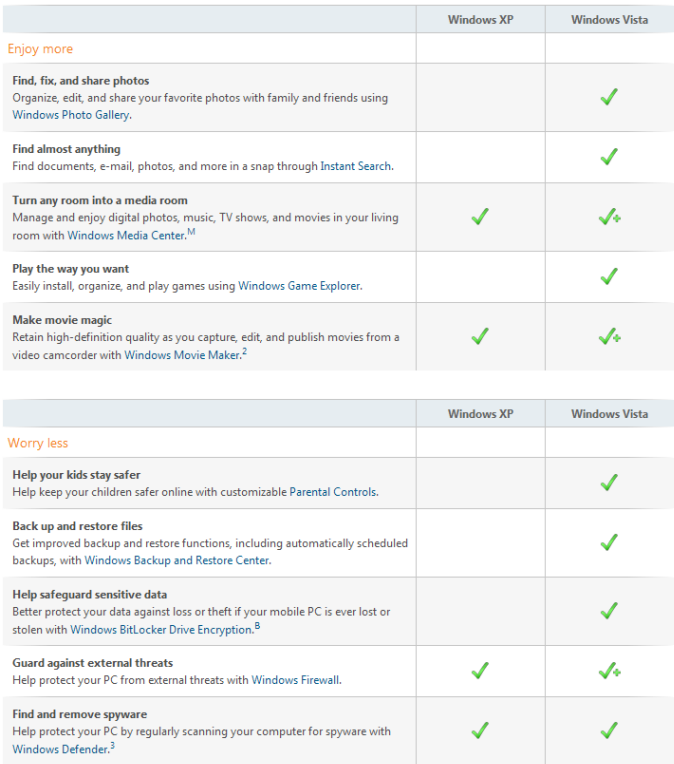
The ‘+’ sign beside the check mark indicates this Windows XP feature is improved in Windows Vista.
Having gone through the above table, if you have chosen Windows Vista as the OS for your laptop, then you are to further narrow down your choice from among four editions of Windows Vista (Source: www.microsoft.com) depending on which features you need in your laptop :

It should be noted that while Windows OS software is popular, it is proprietary from Microsoft and hence comes with a pay per use basis. As seen by the retail price, the Vista Home Basic version comes cheaper with lot less features while the Vista Ultimate comes with all the features but at a steep price. Please note those maximum suggested retail price only and when bundled with the laptop it should be a lot cheaper.
If you are on a tight budget and can’t afford to spend on an OS, then you may want to consider those laptops that come with Linux (Open Source) Operating System. Being open source software, it is free and your whole package becomes a lot cheaper. However you may want to be informed about which version of Linux comes preinstalled on the laptop, whether it is user friendly etc. before making a decision.
A word caution here: it is better to confirm if the OS (proprietary/open source) would support all the applications/ all the hardware that you are currently using or intend to use in the near future, before committing yourself.
28 Coolest Firefox About:Config Tricks

You may have installed countless add-on in Firefox to enhance your using experience, but if you want to get the most out of Firefox, you really have to hack your way into the about:config.
The about:config page contains most (if not, all) of Firefox configuration options. It is so far the most effective, and the most powerful way to tweak and enhance your Firefox performance. Here are 28 of the popular tweaks.
Accessing your about:config page
In your Firefox, type about:config in the address bar.

You will be shown a warning page. Click the “I’ll be careful, I promise!” button to proceed.

On the main page, you will see a long list of configuration entries. Enter the name of the key you want to update in the “Filter” field. The list will narrow to only the entries that match your keyword as you type.
To modify the value, simply double click on the entry value field and update the entry. That’s all!
Isn’t that simple? Now, let’s get to the tweaking.
1) Adjust the Smart Location Bar’s Number of Suggestions
In Firefox 3, when you start typing in the location bar, a drop-down list of suggestion URLs will be shown. If you want it to show more than 12 suggestions (12 is the default), you can adjust the browser.urlbar.maxRichResults keys and get it to show the number you want.

Config name: browser.urlbar.maxRichResults
Default: 12
Modified value: Set to your desired number of suggestion. If you want to disable it all together, set it to -1
2) Disable the session restore function
Firefox 3 automatically saves your session every 10 secs so that whenever it crashes, it can restore all your tabs. While this is a useful feature, some of you might find it irritating. To disable this function, toggle the value of browser.sessionstore.enabled to False
Config name: browser.sessionstore.enabled
Default: True
Modified value: False if you want to disable the session restore function
3) Adjust the Session Restore Saving Frequency
Same as above, if you decided to keep the session restore feature on, but want to reduce the session saving frequency, change the value of browser.sessionstore.interval so that Firefox will save the session at a longer interval.
Config name: browser.sessionstore.interval
Default: 10000 (in msecs, equivalent to 10secs)
Modified value: Set it to your desired value. 1000 means 1 sec and 60000 means 1 minute.
4) Enable Advanced Color Profile Support
Firefox has this advanced color profile features that display higher image quality. It is not enabled by default as it has a negative effect on the performance of the browser. If you are concern with the image quality rather than the performance, you can activated it via the gfx.color_management.enabled setting
Config name: gfx.color_management.enabled
Default: False
Modified value: True (if you want to activate the color profile support feature)
5) Disable Antivirus Scanning
This is mainly for Windows users. By default, Firefox 3 automatically scan the downloaded file with the default anti-virus application to make sure it is free of virus. If you download a big file, it could take a long time for the whole scanning process to complete. To increase the performance of the browser, you might want to consider disabling the anti-virus scanning via the browser.download.manager.scanWhenDone key.
Config name: browser.download.manager.scanWhenDone
Default: True
Modified value: False (if you want to disable it)
6) Configuring The Scrolling Tabs
When you opened many tabs, Firefox will not keep on reducing the tab width. Instead, it shows a scrolling bar so that the min width (100px) is conserved and you can scroll to find your tabs. If you are those who don’t like the scrolling tab function and prefer Firefox to show all the tabs, regardless how small it is, you can set the value of browser.tabs.tabMinWidth to 0 to disable it. Similarly, if you want Firefox to display more tabs before showing the scrolling button, you can reduce the default value to a lower value, say 75 pixels.

Config name: browser.tabs.tabMinWidth
Default: 100
Modified value: 0 if you want to disable the scrolling functions, other values to set the min width value
7) Show/Disable Close button on Tabs
Some people love to see the Close (the red X) button on every tabs, but some hate it. Whatever is it, you can configure it to your preferences via the browser.tabs.closeButtons setting.

Config name: browser.tabs.closeButtons
Default: 1
Modified values:
- 0 – display a close button on the active tab only
- 1- display close buttons on all tabs
- 2- don’t display any close buttons
- 3- display a single close button at the end of the tab strip
In Firefox 3, a script is only given 10 seconds to respond, after which it will issue a unresponsive script warning. If you are hooked on a slow network connection, you might want to increase the script execution time via dom.max_script_run_time to cut down on the frequency of the no script warning.
Config name: dom.max_script_run_time
Default:10 (in secs)
Modified value: 20, or any values greater than 10
9) Handling JavaScript Popups
When you come across a site that executes a javascript open new window function, and if the popup window is without all the usual window features, i.e. back/forward/reload buttons, status bar etc, Firefox will automatically treat it as a popup and will not open it as a new tab. However, if you find this to be a nuisance and wanted to open all new windows in a new tabs, you can specify it via the browser.link.open_newwindow.restriction setting.
Config name: browser.link.open_newwindow.restriction
Default: 2 – Open all JavaScript windows the same way as you have Firefox handle new windows unless the JavaScript call specifies how to display the window
Modified values:
- 0 – open all links as how you have Firefox handle new windows
- 1 – do not open any new windows
- 2- open all links as how you have Firefox handle new windows unless the Javascript specify how to display the window
The default spell checking function only checks for multi-line text boxes. You can get it to spell-check for single line text box as well.
Config name: layout.spellcheckDefault
Default: 1 (spell checker for multi-lines text boxes only)
Modified values:
- 0 – disable the spell checker
- 2 – enable the spell checker for all text boxes
When you search using the search box at the top right hand corner of the browser, it will display the search results in the current tab. If you don’t want the search to interfere with your current tab, you can tweak the browser.search.openintab to make it open in a new tab.
Config Name: browser.search.openintab
Default: False
Modified value: True (open search box results in new tab)
12) Lower The Physical Memory Used When Minimized
This tweak is mainly for Windows users. When you minimize Firefox, it will send Firefox to your virtual memory and free up your physical memory for other programs to use. Firefox will reduce its physical memory usage, when minimized, to approximately 10MB (give or take some) and when you maximize Firefox it will take back the memory that it needs.
The preference name does not exist and needs to be created.
Right click on the background and select New->Boolean.
Enter the name when prompted: config.trim_on_minimize
Enter the values: True
13) Speed up your Firefox
Several tweaks required for this
Config name: network.http.pipelining
Default: False
Modified value: True
Config name: network.http.proxy.pipelining
Default: False
Modified value: True
Config name: network.http.pipelining.maxrequests
Default: 4
Modified value: any value higher than 4, but not more than 8
Config name: network.http.max-connections
Default: 30
Modified value: 96
Config name: network.http.max-connections-per-server
Default: 15
Modified value: 32
14) Increase/Decrease the Amount of Disk Cache
When a page is loaded, Firefox will cache it into the hard disk so that it doesn’t need to be download again for redisplaying. The bigger the storage size you cater for Firefox, the more pages it can cache.
Before you increase the disk cache size, make sure that browser.cache.disk.enabled browser.cache.disk.enable is set to True.
Config name: browser.cache.disk.capacity
Default: 50000 (in KB)
Modified value:
- 0 – disable disk caching
- any value lower than 50000 reduces the disk cache
- any value higher than 50000 increases the disk cache.
In Windows and Mac, Firefox highlights all text when you click on the URL bar. In Linux, it does not select all the text. Instead, it places the cursor at the insertion point. Regardless which platform you are using, you can now tweak it to either select all or place cursor at insertion point.

Config name: browser.urlbar.clickSelectsAll
Modified value:
- False – place cursor at insertion point
- True – select all text on click
Other than the smart location feature, you can also get your URL bar to autofill the address as you type the URL.

Config name: browser.urlbar.autofill
Default: False
Modified value: True (Have Firefox autofill the address as you type in the URL bar)
17) Same Zoom Level For Every Site
Firefox remembers your zoom preference for each site and set it to your preferences whenever you load the page. If you want the zoom level to be consistent from site to site, you can toggle the value of browser.zoom.siteSpecific from True to False.
Config name: browser.zoom.siteSpecific
Default: True
Modified value: False (enable same zoom preferences for every sites)
18) Setting your zoom limit
If you find that the max/min zoom level is still not sufficient for your viewing, you can change the zoom limit to suit your viewing habits.
Config name: zoom.maxPercent
Default: 300 (percent)
Modified value: any value higher than 300
Config name: zoom.minPercent
Default: 30 (percent)
value: any value
19) Configure Your Backspace Button
In Firefox, you can set your backspace to better use by getting it to either go back to the previous page or act as page up function.
Config name: browser.backspace_action
Default: 2 (does nothing)
Modified value:
- 0 – go back previous page
- 1- page up
If you do not have access to Internet most of the time, you might want to increase the offline cache so that you can continue to work offline. By default, Firefox 3 caches 500MB of data from supported offline Web apps. You can change that value to whatever amount of your choice.
Config name: browser.cache.offline.capacity
Default: 512000 (in KB)
Modified value: any value higher than 512000 will increase the cache value
21) Auto Export Firefox 3 bookmarks to bookmarks.html
Unlike the previous version, Firefox 3 backup the bookmarks file in places.sqlite rather than the usual bookmarks.html. Since bookmarks.html allows us to export and sync our bookmarks with other browser, it will be very useful if Firefox 3 can backup the bookmark to the bookmarks.html as well.
Config name: browser.bookmarks.autoExportHTML
Default: False
Modified value: True (auto export bookmarks file to bookmarks.html)
22) Disable Extension Compatibility Checks
This is useful if you want to use an extension that is not supported by your version of Firefox badly. It is not recommended, but you can still do it at your own risk.
Right click and select New->Boolean. Enter extensions.checkCompatibility in the field. Enter False in the next field.
Right click again and select New->Boolean. Enter extensions.checkUpdateSecurity into the field and enter False into the next field.
23) Disable Delay Time When Installing Add-on
Everytime you wanted to install a Firefox add-on, you will have to wait for several secs before the actual installation starts. If you are tired of waiting, you can turn the function security.dialog_enable_delay off so that the installation will start immediately upon clicking.

Config name: security.dialog_enable_delay
Default: 2000 (in msec)
Modified value:
- 0 – start installation immediately
- any other value (in msec)
This is very useful for developers who are always using the ‘view source‘ function. This tweak allows you to view the source code in an external editor.
There are two configuration need to be made:
Config name: view_source.editor.external
Default: False
Modified value: True ( enable view source using external text editor)
Config name: view_source.editor.path
Default: blank
Modified value: insert the file path to your editor here.
25) Increasing ‘Save Link As‘ timeout value
When you right click and select the ‘Save Link As…‘, the browser will request the content disposition header from the URL so as to determine the filename. If the URL did not deliver the header within 1 sec, Firefox will issue a timeout value. This could happen very frequently in a slow network connection environment. To prevent this issue from happening frequently, you can increase the timeout value so as to reduce the possibility of a timeout.
Config name: Browser.download.saveLinkAsFilenameTimeout
Default: 1000 (1 sec)
Modified value: any value higher than 1000 (value is in msec)
26) Animate Fullscreen Toolbar Collapse mode
In Firefox’s fullscreen mode, toolbars and the tab strip are hidden at the top of the screen and only shown on mouseover. To draw attention to this, there is an animation of the toolbar sliding upwards and off-screen when fullscreen mode is toggled on. For performance issue, the animation of the collapse of the toolbar only appear for the first time. For some reason that you may love/hate the animation, you can adjust Browser.fullscreen.animateUp to switch it on/off for every collapse.
Config name: Browser.fullscreen.animateUp
Default: 1 (animate the toolbar collapse only the first time)
Modified value:
- 0 -disable the animation
- 2- enable the animation for every collapse
In fullscreen mode, the toolbar is set to autohide and appear upon mouseover. If you have a need to view the toolbar at all time, you can toggle the value of browser.fullscreen.autohide to False to always show the toolbar.
Config name: browser.fullscreen.autohide
Default: True (always autohide)
Modified value: False (always show the toolbar)
28) Increase Add-On search result
If you go to Tools->Add-ons->Get Add-ons and perform a search there, Firefox will only fetch and display 5 matching results. If you want Firefox to show more than 5 results (say 10), you can adjust extensions.getAddons.maxResults to get it to display more results.
Config name: extensions.getAddons.maxResults
Default: 5
Modified value: any value more than 5
This list of about:config is definitely not the complete list. If you have any tricks not listed here, please add it in the comment.
Download Free Orkut Softwares
ORKUT CUTE (Scrap All Your Friends At Once)
Orkut cute a software by which you can browse orkut.
This is an awesome software with which you can do many tricks like:
1. Send a same scrap to all your friends (Best thing is along with hyperlink!!! Yes, This software can bypass the word check!!!)
2. Start a same topic in all your communities.
3.Get Notifications Like "New Profile View", "New Scrap"
Scrapboy enables you to send and receive instant scraps from your friends without a web browser. It gives you more Convenience and speed while scrapping.
Scrapboy is generally known as Orkut Messenger. You can send your scraps instantly, just like chatting.
Download Scrap Boy
Friends I Call This as 'Orkut Official Toolbar' (Not actually official). This makes navigation in orkut easier by providing user friendly buttons in the menus.
This also provides additional Pop up blocker, Email alerting, Search box and a Radio.
Download Orkut Toolbar Below
|Internet Explorer| |Mozilla Firefox|
Mozilla Firefox Hotkeys | Keyboard Shortcuts
Windows Keyboard Shortcuts for Mozilla Firefox | |
| CTRL + A | Select all text on a webpage |
| CTRL + B | Open the Bookmarks sidebar |
| CTRL + C | Copy the selected text to the Windows clipboard |
| CTRL + D | Bookmark the current webpage |
| CTRL + F | Find text within the current webpage |
| CTRL + G | Find more text within the same webpage |
| CTRL + H | Opens the webpage History sidebar |
| CTRL + I | Open the Bookmarks sidebar |
| CTRL + J | Opens the Download Dialogue Box |
| CTRL + K | Places the cursor in the Web Search box ready to type your search |
| CTRL + L | Places the cursor into the URL box ready to type a website address |
| CTRL + M | Opens your mail program (if you have one) to create a new email message |
| CTRL + N | Opens a new Firefox window |
| CTRL + O | Open a local file |
| CTRL + P | Print the current webpage |
| CTRL + R | Reloads the current webpage |
| CTRL + S | Save the current webpage on your PC |
| CTRL + T | Opens a new Firefox Tab |
| CTRL + U | View the page source of the current webpage |
| CTRL + V | Paste the contents of the Windows clipboard |
| CTRL + W | Closes the current Firefox Tab or Window (if more than one tab is open) |
| CTRL + X | Cut the selected text |
| CTRL + Z | Undo the last action |
Windows Keyboard Shortcuts for Mozilla Firefox | |
| F1 | Opens Firefox help |
| F3 | Find more text within the same webpage |
| F5 | Reload the current webpage |
| F6 | Toggles the cursor between the address/URL input box and the current webpage |
| F7 | Toggles Caret Browsing on and off. Used to be able to select text on a webpage with the keyboard |
| F11 | Switch to Full Screen mode |
Speed Up Your FireFox 10x Faster
1. Type "about:config" into the address bar and hit enter. Scroll down and look for the following entries:
2. Alter the entries as follows:
Set "network.http.pipelining" to "true"
Set "network.http.proxy.pipelining" to "true"
set "network.http.pipelining.maxrequests" to some number like 30. This means it will make 30 requests at once.
3. Lastly right-click anywhere and select New-> Integer. Name it "nglayout.initialpaint.delay" and set its value to "0". This value is the amount of time the browser waits before it acts on information it recieves.
More options:
For ADSL:
1. Type: about:config
2. Set:
network.http.max-connections : 64
network.http.max-connections-per-server : 21
network.http.max-persistent-connections-
network.http.pipelining : true
network.http.pipelining.maxrequests : 100
network.http.proxy.pipelining : true
3. Lastly right-click anywhere and select New-> Integer. Name it "nglayout.initialpaint.delay" and set its value to "0". This value is the amount of time the browser waits before it acts on information it recieves. (Copy from TvM)
NOTE-i will not be responsible for any DAMAGE.
U r Dponig this @ your own risk.........
21 TipsnTricks For UR SYSTEM
1] Your Pc Must have 256MB RAM , 512 MB Cache , Intel Pentium 4 Processor, 40 GB HDD. These are the minimum requirements.
2] If you see a 'virtual memory low' message then increase its virtual memory. To increase virtual memory,
Go to My Computer->Properties->Advanced->Performa
3] Increase 'Visual Performance'. Go to My Computer->Properties->Advanced->Performa
a)Slide taskbar buttons.
b)Smooth edges of screen fonts.
c)Smooth-scroll list boxes.
d)Use a background image for each folder type.
e)Use visual style on windows and buttons.
4] Don't keep unwanted/extra fonts. To remove extra fonts, Go to Start->Settings->Control Panel->Fonts.
5] Your Desktop Wallpaper & Screensaver consume a large amount of disk space. Select the 'None' option for both wallpapers & Screensavers.
6] Avoid keeping DEMO Games.
7] Uninstall the unwanted Softwares.
8] Use Registry Cleaner to keep your registry clean(without errors).
9] Try to keep Music and pictures files in the folder specified by windows itself.
10]Use Hybernating Option for Quick windows start. To active Hybernating follow the following steps.
Desktop->Properties->Screensaver->Power-
11] Keep your Dektop clean with unwanted icons.
12] Use Intel Application Accelerator to speed up your disk access,
13] Memory management (at least 512MB RAM Required). This allow XP to keep data in Memory instead of paging section of RAM.
Go to->Start->Run->regedit->HKEY_LOCAL_MACH
14] Disable Yahoo Messenger, Google Talk, and other unwanted programs from startup. (You can use registry editior to do this.). Because they do not appear in normal Startup Option.
15] Disable indexing files service (only if you do not use search option regularly). To do this follow the following steps.
Go to My Computer->Select the drive for which you want to disable the indexing service->Properties->Unselect 'Allow Indexing Service'->Ok.
16] For Windows XP, You must use NTFS partition. FAT partition is less supportive for Windows XP.
17] In BIOS, Select first booting device as your HDD.
18] Setting Priority High for a particular program.
Open Task Manager->Processes->Select the desired Program->Right Click->Set Priority->High->Ok.
This Priority set if for current session. Once you restart your system then its priority will again be Normal.
19] Keep deleting your Temporary Internet Files in regular intervals.
Go to Windows Drive (c: or d:)->Select the User->Local Settings->Temporary Internet Files
20] Empty your browser's cache in regular intervals.
21] Avoid keeping Movies in your PC.